
Keep Your Installed Unihongo Ready for the Next Lesson

Unihongo is accessed through the web, including its installed PWA entry, so you do not need to search an app-store listing just to open the learning service. If a page looks outdated, preserve unfinished work, check connectivity, and reopen or reload before investigating further.

Mocchi helps a learner preserve a draft, reopen Unihongo with a connection, and check the current lesson
What you need to know

Keep Your Installed Unihongo Ready for the Next Lesson

An installed web experience can feel like an app while still relying on browser-managed resources and a network connection for live learning. That does not mean every open window instantly changes when a new release becomes available. A sensible response to an unfamiliar interface is to finish or preserve your work, refresh carefully, and check the exact feature you expected. Keep access troubleshooting separate from questions about your account, subscription, or the learning task you were trying to complete.

Open the service from its website or installed entry.

Preserve unsent writing before a reload or window change.

Use a connection and check the refreshed result.

Describe the specific problem if reopening does not resolve it.

Understand the entry point you are using

You may open Unihongo in a regular tab or from an installed app-style entry. Both are ways to reach the learning service. The presence of a separate window does not mean you must manage it like a traditional store-distributed package. Use the real site and the browser’s available controls when checking how you are accessing it.

At the same time, avoid treating “web based” as a guarantee that an already-open page immediately reflects every new change. A learning session has its own state, and browser resources may be managed separately. Verify what the current page actually does before making conclusions from its icon or window frame.

Preserve the work that a refresh could interrupt

An unsent diary entry, a sentence you are editing, or an in-progress activity deserves attention before you reload. Finish the action if practical, or preserve the text in a safe place you control. Checking a release is easier when you are not also trying to reconstruct an answer you accidentally discarded.
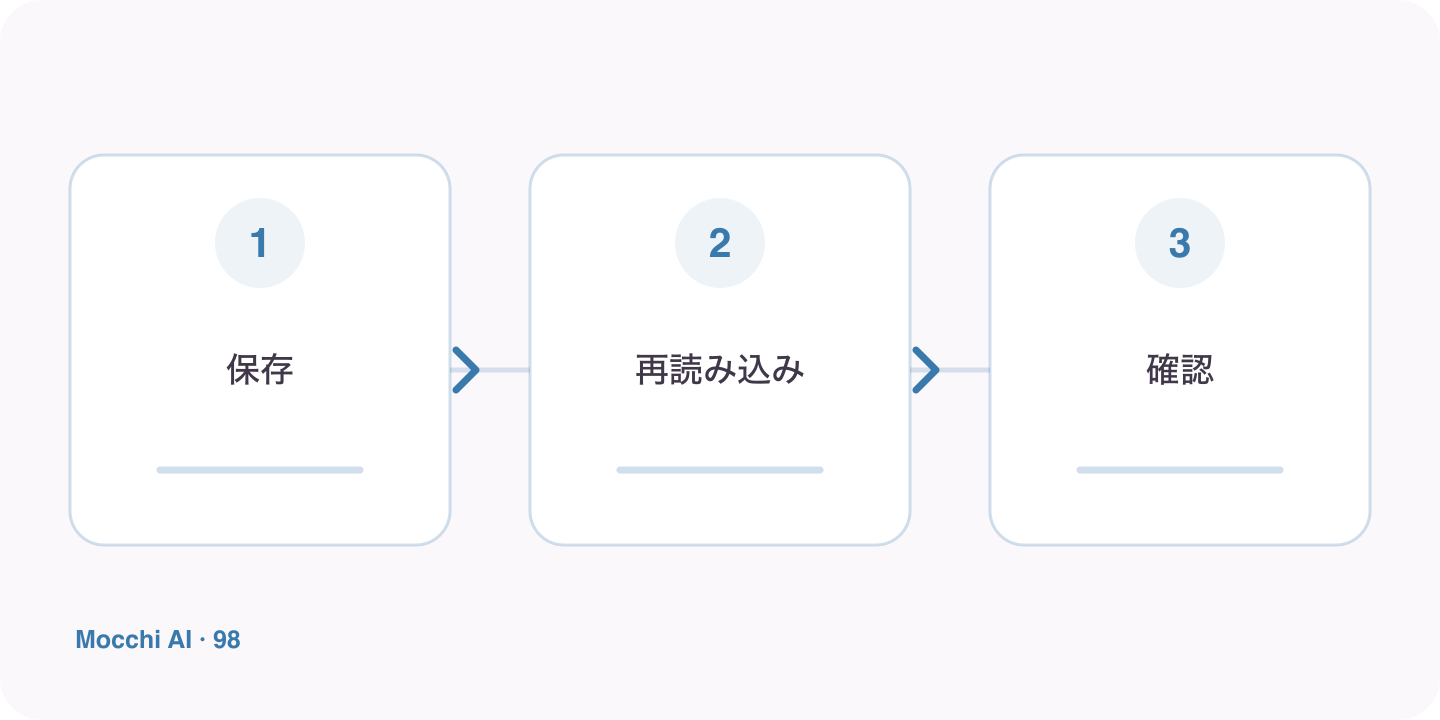
An unfinished task is preserved before a connected reload and a check of the expected learning feature
Preserve important work before reloading, then verify the result instead of assuming every cache changes instantly.
Before refreshingReason
Check unsent textAn input field may contain work that was never submitted.
Confirm the last completed actionReopening is not evidence that a learning task was completed.
Note the next stepYou can resume with a clear purpose after checking the page.

Reopen with a connection and inspect one feature

Confirm connectivity, then reopen the installed entry or reload the browser page. Check the account and the specific feature that seemed different. A narrow check is more useful than browsing randomly for signs of change. If a correction or layout now appears as expected, return to the task rather than continuing to reset settings unnecessarily.

Report persistent differences with useful context

If the result remains unexpected, record the device type, browser, page address, and what you did. Explain the observed behavior and the expected behavior separately. This helps distinguish a missing option from a connection failure, account access issue, or rendering problem. Avoid including private learner messages or sensitive account details in a public report.

Resume the learning thread deliberately

Tell Mocchi which activity you completed and what you planned next. A reload does not teach a word, submit a draft, or complete a study task by itself. Keeping the next action explicit prevents a small technical check from consuming the whole visit. The goal is a stable return to useful practice with your work and learning context intact.

Key points

A practical way to improve

Choose a low-stakes moment between tasks rather than the middle of an important response. Preserve any unfinished text, confirm that you have an internet connection, and reopen the installed Unihongo entry or reload the page. Check the account and the feature you intended to use. If the issue persists, record the device, browser, page, and observed behavior so that troubleshooting can address something concrete.

  1. 1

    Choose one clear goal

    Focus each session on a situation or skill you can actually use.

  2. 2

    Practice actively

    Say complete answers aloud instead of only reading or recognizing Japanese.

  3. 3

    Review and repeat

    Keep useful corrections and revisit the same skill until it feels natural.

FAQ

Frequently asked questions

Do I need an app-store update to access Unihongo?

The PWA route begins from the website and its browser-managed installation. Open the real service directly; this guide does not require searching for a separate app-store package.

Does a release instantly replace every already-open window?

Do not assume that. Browser resource handling and an existing session can affect what you see. Preserve important work, reopen or reload with a connection, and check the actual result.

Should I clear all browser data if something looks old?

Start with simpler steps such as a careful reload, connectivity check, and account verification. Clearing data can affect local sessions and settings, so it should not be the automatic first response to a visual difference.

Return to learning after a careful refresh

Once the page is ready, continue with one specific Mocchi activity rather than rebuilding your study plan.