

Open Unihongo in the full browser
Type or follow the real Unihongo address in Chrome rather than relying on a limited browser window inside another app. Check the address before signing in. A full browser gives you access to its own menu and installation options, which may not be exposed in the same way inside an embedded view.
If you are already using Unihongo, finish any important unfinished message before changing windows. Installation is an access step; it is easier to check the result when you know which account and learning task you intend to return to.
Use the install suggestion or Chrome's menu
After first-time Mocchi setup, eligible Android users may see a suggestion to add Unihongo for easier access. Choose it if you want to install. If the suggestion is not present, use Chrome's menu and look for the browser's install or Home Screen option. The browser controls the exact dialog, so the absence of one particular button label does not by itself mean the route is unavailable.
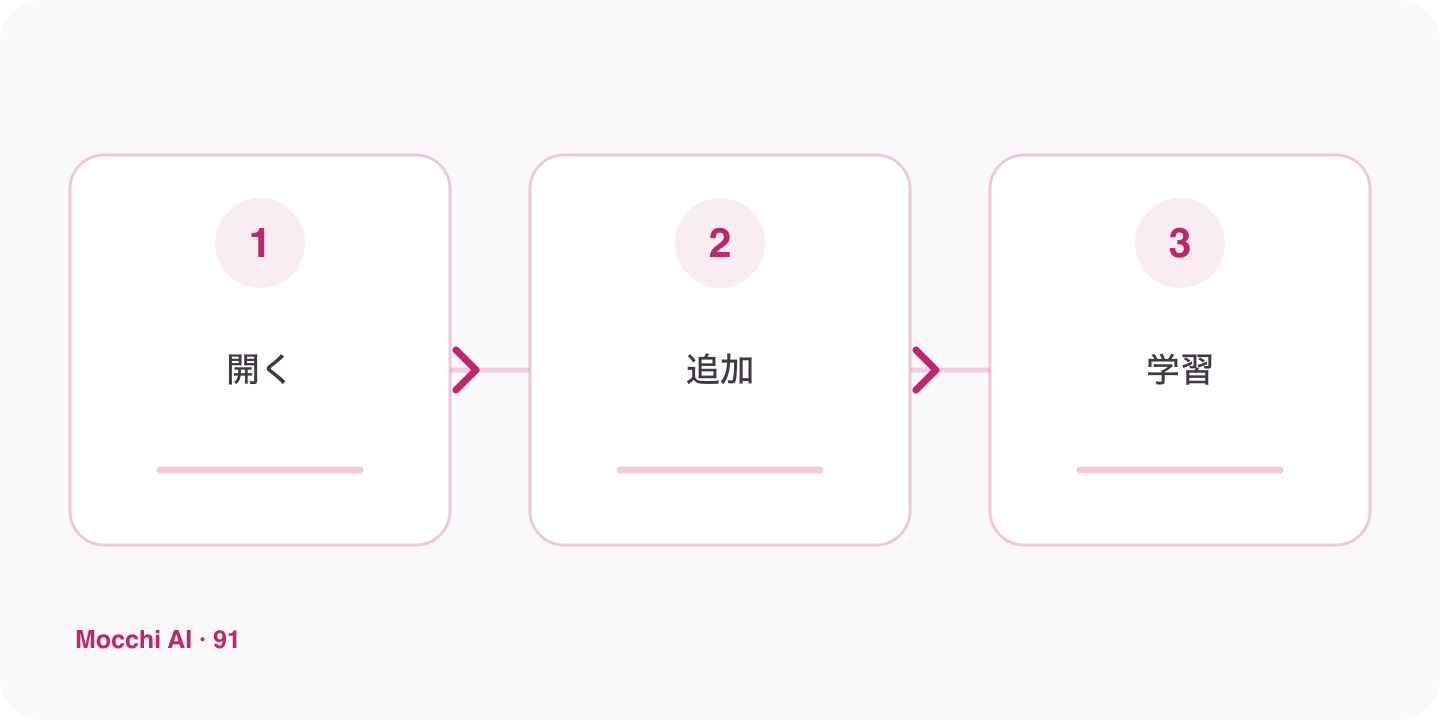
- Open the site in Chrome.
- Choose the offered install or Home Screen route.
- Review the browser prompt and confirm if you want the icon.
Launch the icon to check the actual result
Return to your Home Screen and open the new Unihongo entry. Depending on browser and device behavior, the experience can have an app-style window or another browser-managed form. Check that it reaches the correct service and that the account is the one you intended to use. The icon does not create a second learner profile by itself.
Start with a short Mocchi activity
Ask for today's next task, a small review, or a focused explanation tied to your goal. The convenience of installation matters most when the first action is clear. Mocchi's memory and planning support can make that return relevant, but you should correct outdated assumptions or an unfamiliar account before beginning a long session.
Keep troubleshooting proportional
If an install prompt does not appear, check whether an icon is already present and whether you are in the full browser. Use the available menu route and consult Chrome's current help when the interface differs. Do not assume that installation changes plan limits or makes every activity work without a connection. A quick way to return is useful on its own without promising capabilities the app has not offered.