

Start in the browser and identify the right entry point
Open the real Unihongo site in desktop Chrome and check whether you are signed in to the intended account. An app-style window can be convenient, but it should lead to the same learner context you use on the website. Keep any unsent important text safe before switching the way you open the service.
Do not expect the learner dock on every public page or at every layout size. The browser's own installation route is useful when the site's shortcut is not visible. This separates a missing shortcut from the question of what Chrome can offer for the current page.
Use the shortcut or the browser's install route
When the eligible desktop learner dock shows the install icon, hover or keyboard-focus it to check its Add to Home Screen label. Opening it can use an available browser prompt or show manual instructions. Chrome may also show an address-bar install control or a menu route, including an install-page-as-app choice in supported versions. Wording and placement can change with the browser.
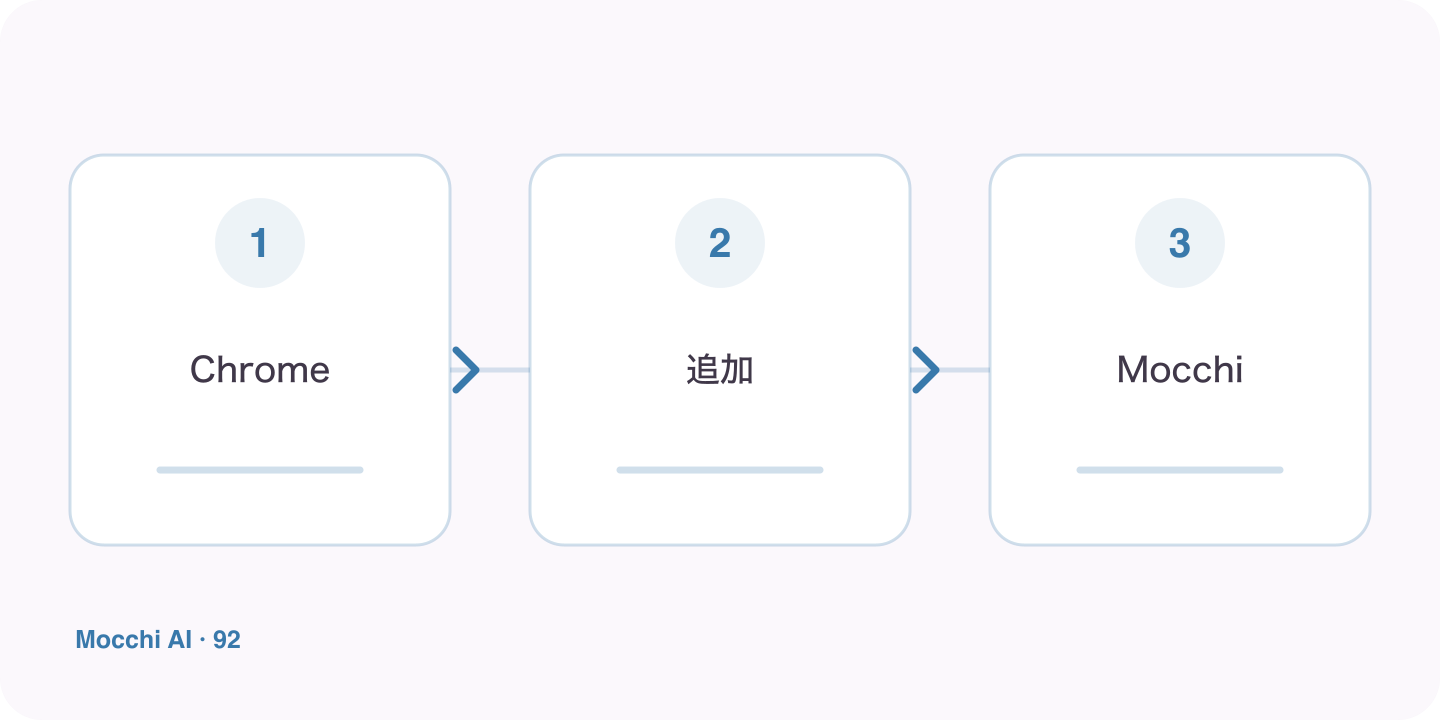
- Confirm that you are on Unihongo in Chrome.
- Use the offered site shortcut or Chrome install route.
- Review the browser prompt and launch the resulting entry.
Check the app-style window before relying on it
Open the installed entry and confirm the site and account. An installation icon and a signed-in learner profile are different things. If the account is unfamiliar or the plan does not match, resolve that before starting practice. The new window should make access easier, not create uncertainty about whose learning history you are using.
Give the first session a clear learning purpose
Ask Mocchi for a small review or the next relevant planned task. Desktop space can make reading and writing activities comfortable, while the same account can still support a short phone visit later. Choose the activity according to your goal rather than assuming the desktop session must be long simply because more screen space is available.
Use current browser help when the interface differs
If the prompt is absent, check whether an installed entry already exists and inspect the browser's menu. A previously dismissed offer or a different browser context can change what appears. Consult Chrome's current web-app instructions instead of following an outdated screenshot blindly. Connected learning still needs internet and the account's available access, even when the app opens in its own window.