
Does Installed Unihongo Work Offline? What to Check

Do not rely on installed Unihongo for offline AI chat, live grading, or other connected learning activities. A Home Screen icon or a page that opens from cached resources does not establish that the current task can reach the service and return a response.

Mocchi distinguishes an opening Unihongo screen from connected AI chat and a learner’s safely preserved draft
What you need to know

Does Installed Unihongo Work Offline? What to Check

The useful question is not simply whether an icon opens. It is whether the activity you intend to do can complete with the connection and account access available now. A learner might see a familiar screen while a new chat message still requires internet. Before beginning an important exercise, check the connection and preserve unfinished work when something fails. Installation improves the route back to Unihongo; it should not be interpreted as a promise that every learning feature has an offline version.

Treat live AI and grading as connected activities.

Separate a visible page from a successful submitted task.

Preserve important text when the connection becomes unreliable.

Resume with a small check after connectivity returns.

Define success in terms of the learning activity

For a chat exercise, success includes receiving the intended response, not merely seeing an input field. For a saved card, it includes confirming the save action rather than only reading a suggested word. Identify the result you need before deciding that an app is working normally on a weak connection.

This distinction is useful beyond installation. A browser tab can display a page while a live request fails, and an app-style window can do the same. The window shape does not tell you whether a particular learning action has reached the service. Watch the actual response and any visible status the interface provides.

Separate three commonly confused states

A familiar screen, an attempted submission, and a completed response are not interchangeable. Keeping them separate helps you avoid losing a draft or repeating an action unnecessarily. Start by describing what you can directly verify rather than assigning a broad label such as “everything is offline.”
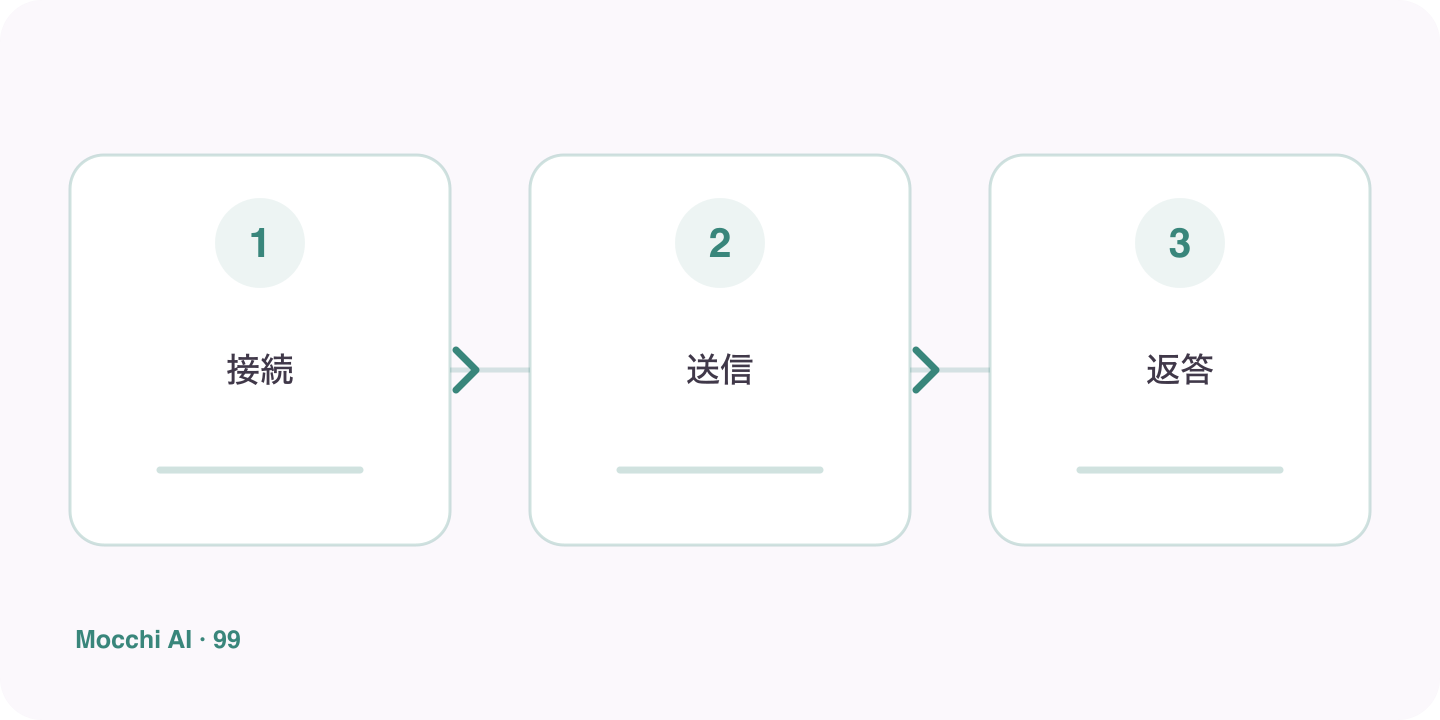
A visible app entry is checked separately from connectivity and the successful submission of a learning response
Being able to open a page is different from receiving a successful response from a connected learning activity.
What you observeWhat it establishes
The Unihongo entry opensYou reached a window or page.
You pressed sendYou attempted an action; confirm its result.
The expected response appearsThat particular request completed sufficiently to show its result.

Preserve the learner’s work before changing the page

If you have written an important response, keep a safe copy before reloading or closing a window. Do not assume a draft exists on another device or that an interrupted request was saved. Avoid clearing browser data as the first troubleshooting move, because that can affect local sessions and settings while leaving the underlying connection problem unresolved.

Restart with a small connected check

After connectivity improves, check the account and try a modest activity whose result is easy to verify. Then inspect the previous task to see what actually completed. If the state is unclear, describe the last confirmed response before asking Mocchi for a follow-up. This is more reliable than reconstructing progress from the number of times you pressed a button.

Choose an offline fallback without inventing app capabilities

You can use your own already-available notes to review a distinction or rehearse a sentence while waiting for a connection. Keep that separate from a claim that Unihongo’s AI is operating offline. When service access returns, bring the sentence back for feedback. The learning can continue flexibly while the limits of the connected tool remain clear.

Key points

A practical way to improve

Before a session where connectivity may be unreliable, decide which task you actually need to complete. Open Unihongo and check whether a small connected action receives a response. If a message fails or remains unresolved, preserve the text and inspect the state before resubmitting. When your connection returns, confirm what was submitted and continue from the last verified result rather than assuming every attempted action succeeded.

  1. 1

    Choose one clear goal

    Focus each session on a situation or skill you can actually use.

  2. 2

    Practice actively

    Say complete answers aloud instead of only reading or recognizing Japanese.

  3. 3

    Review and repeat

    Keep useful corrections and revisit the same skill until it feels natural.

FAQ

Frequently asked questions

Can I chat with Mocchi offline after installation?

Do not expect offline AI chat. Connected activities need internet and the account’s available access. An installed entry changes how you open the service, not where live AI responses are produced.

Why can the page open if a new message will not send?

Opening interface resources and completing a connected request are different operations. A visible page alone does not prove that the current request reached the service or that a result was saved.

What should I do with an answer when the connection drops?

Preserve important text, check whether submission succeeded, and avoid repeatedly sending the same action without understanding its state. After reconnecting, continue from the last confirmed result.

Continue from the last verified learning result

Once you are connected, ask Mocchi for a short task and check its response before expanding the session.