
Keep Your Mocchi Japanese Learning Context on Your Account

Mocchi's personal learning context belongs to the learner's account, not to the appearance of an app icon. On a shared device, check which account is signed in before reviewing a plan or beginning a new practice session.

Mocchi connects a learner's account to a study plan while a separate device icon represents browser installation
What you need to know

Keep Your Mocchi Japanese Learning Context on Your Account

A PWA can make Unihongo quick to open from a phone or desktop, but installation and account identity solve different problems. The icon is a convenient entry point. Signing in tells the service which learner's profile and available account features to use. Confusing the two can make a lesson feel unexpectedly easy, show an unfamiliar goal, or lead someone to practice inside another person's account. A short opening routine helps keep personal learning context coherent.

Check the signed-in account before using a shared device.

Treat installation as access, not a new learner profile.

Keep each learner's goals and practice separate.

Confirm a next task rather than assuming every screen is current.

A useful learning history needs a clear learner identity

Personalization depends on connecting a goal, practice results, and later review to the same learner. If a friend answers questions inside your account, the resulting context may not describe your own ability. If you accidentally create a second account, a familiar goal may appear to be missing. Before assuming that memory or planning failed, check which account is currently active and whether the recent practice belongs to you.

A shared phone, family tablet, or classroom computer makes this check especially useful. The visible device does not tell the tutor who is typing. Keep the account boundary clear so the learning context remains a helpful description of one person's progress rather than a mixture of several people's interests and errors.

Separate the app entry point from the learning account

Think of the Home Screen icon as a door rather than a profile. It opens the service in an app-style window on supported browsers, but it does not establish whose plan should be shown. You still need the appropriate signed-in account. This distinction also explains why uninstalling an icon and signing out are different actions, and why you should check account controls separately from the device's app shortcut settings.
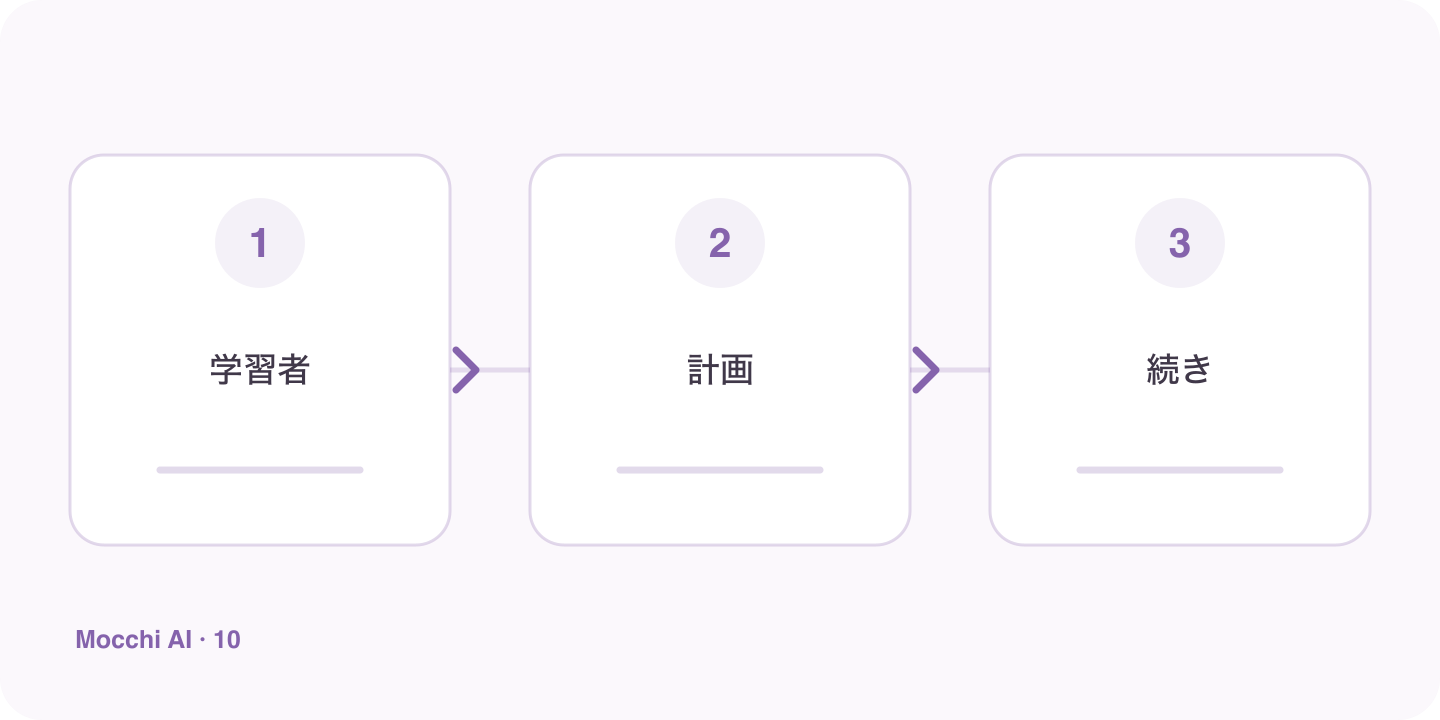
Signing in identifies the learner, opening the app provides access, and the next task uses the learner's context
The app icon is an entry point; the signed-in account identifies whose learning context the session uses.

Use a brief opening check on another device

When returning on a laptop after practicing on a phone, ask for the next relevant task and read it before continuing. Does the goal match? Is the time commitment still realistic? Are you looking at work you intended to review? These questions reveal a context mismatch early. They are more useful than beginning a long lesson and only afterward noticing that the task belonged to a different account or an outdated plan.

Keep shared-device examples impersonal

If you are demonstrating Mocchi to someone else, use an invented learner situation and avoid changing your saved goal merely to show a feature. Explain that the demonstration is temporary. For a real second learner, use their own account and setup. A demonstration should not create a new picture of your level or preferences that later makes your own practice less suitable.

Finish with a clear return point and a clean handover

Before closing, note the next task and sign out when the device is shared. Do not assume that closing an app-style window always signs you out. When you return, use the same account and verify the context again if anything looks unfamiliar. This simple routine protects the usefulness of a personal study plan and makes the PWA a convenient starting point rather than a source of confusion about whose learning is in progress.

Key points

A practical way to improve

Open Unihongo from the browser or installed app and check the account before starting. Ask Mocchi for today's next task and read whether it matches your goal and available time. If you use another device, sign in to the same account and check the plan there rather than creating a second profile accidentally. On a shared device, sign out when you finish and avoid leaving personal learning screens open for the next person.

  1. 1

    Choose one clear goal

    Focus each session on a situation or skill you can actually use.

  2. 2

    Practice actively

    Say complete answers aloud instead of only reading or recognizing Japanese.

  3. 3

    Review and repeat

    Keep useful corrections and revisit the same skill until it feels natural.

FAQ

Frequently asked questions

Does installing Unihongo create another account?

Installing the PWA provides an app-style way to open the site. Account creation and sign-in are separate steps. Check the account you use instead of assuming that a new icon means a new learning profile.

Can two people use one account for separate plans?

Personalized learning works best when each learner has their own account and learning context. Mixing goals and practice results under one identity can make later recommendations less relevant to either person.

Does the installed app make all activities available offline?

No. Installation does not remove the internet requirement for AI activities or change plan limits. Treat the app icon as a convenient way to return to Unihongo, and check connectivity before relying on a live lesson.

Start from the right learning context

Open Mocchi, check your account, and continue with a task that belongs to your own Japanese goal.